
At a glance
- Print-ready means
- Flat artwork, finished size, all sides, sharp images, safe margins, bleed if the printer asks
- From Canva
- Download, choose PDF, then the Print preset (Canva calls it PDF Print)
- From ChatGPT or AI
- Ask for flat artwork, not a product scene, then check every word and the size
- Image detail
- About 300 pixels per inch at the printed size suits most small prints
- Bleed example
- Canva adds 0.125 in on every side; a 3.5 × 2 in card becomes 3.75 × 2.25 in
- Files True Color takes
- PDF, AI or EPS is best; PNG or JPG at 300 dpi works; Canva designs accepted
- Help with a file
- Staff can add bleed and upscale images (upscale is a flat $20); design or fix-up is a flat $40
What are you printing?
| What you are printing | What to tell the designer or AI | Where to order or learn more |
|---|---|---|
| Business cards | Finished size, one or two sides, exact name, phone and email, your real logo | Business cards page; 14pt stock, one or two sided |
| Flyers and postcards | Finished size, one or two sides, text large enough to read at arm's length | Flyers page; postcards page |
| Posters | Poster size, a high-resolution photo, short readable text | Photo posters page |
| Vinyl banners | Width and height, how it will hang, keep text clear of hems and grommets | Vinyl banners page; ask staff about edge allowance |
| Coroplast signs | Sign size, one or two sides, big text for reading from a distance, where stakes or holes go | Coroplast signs page |
| Stickers and labels | Size and shape; True Color cuts stickers with a white border around the artwork | Stickers page (priced by quote) |
| No file yet, or a blurry one | What it is for, your words, any photo or sketch you have | Design help page |
Not sure about a size, an edge or a cut line? Ask before you finish the design.
How to export a print PDF from Canva
Open the original design
Use the design itself, not a screenshot or a PNG you uploaded back into Canva.
Check the size and pages
The page size should match the finished size. Make sure every side or page is there, in order.
Turn on print bleed
Select File, then Rulers and guides, then Show print bleed. Stretch background colours and photos to the dashed bleed line. Keep text inside the margins.
Download as PDF with the Print preset
Select Share, then Download. Under File type choose PDF, and under Presets choose Print.
Add crop marks and bleed only if asked
Under Advanced settings, "Crop marks and bleed" is off by default. Turn it on only when your printer asks for it.
Leave the colour setting unless told
PDF Print can use RGB or CMYK, and CMYK needs a paid Canva plan. Use what your printer asks for.
Open the PDF and check it
Look at every page at full size: spelling, numbers, photo sharpness and how close text sits to the edge. Then send that PDF.
Canva updates its menus from time to time. If a label has moved, Canva's help page on downloading files has the current steps.
File check before you send it to print
- Flat artwork, not a product scene
- Finished size and orientation set, for example 3.5 × 2 in landscape
- Every side or page included, in order
- Bleed and safe area set to the printer's numbers, or a note asking the shop to add bleed
- Spelling, phone numbers, emails, dates and web addresses read twice
- QR code scanned from the exported file with a real phone
- Canva PDF exported from the original design with the Print preset
- Photos sharp when zoomed to 100%
- Canva link opens for the shop, with the lowest access they need
- Size, quantity, finishing and the date you need it written in your note
Are you sending artwork or a product scene?
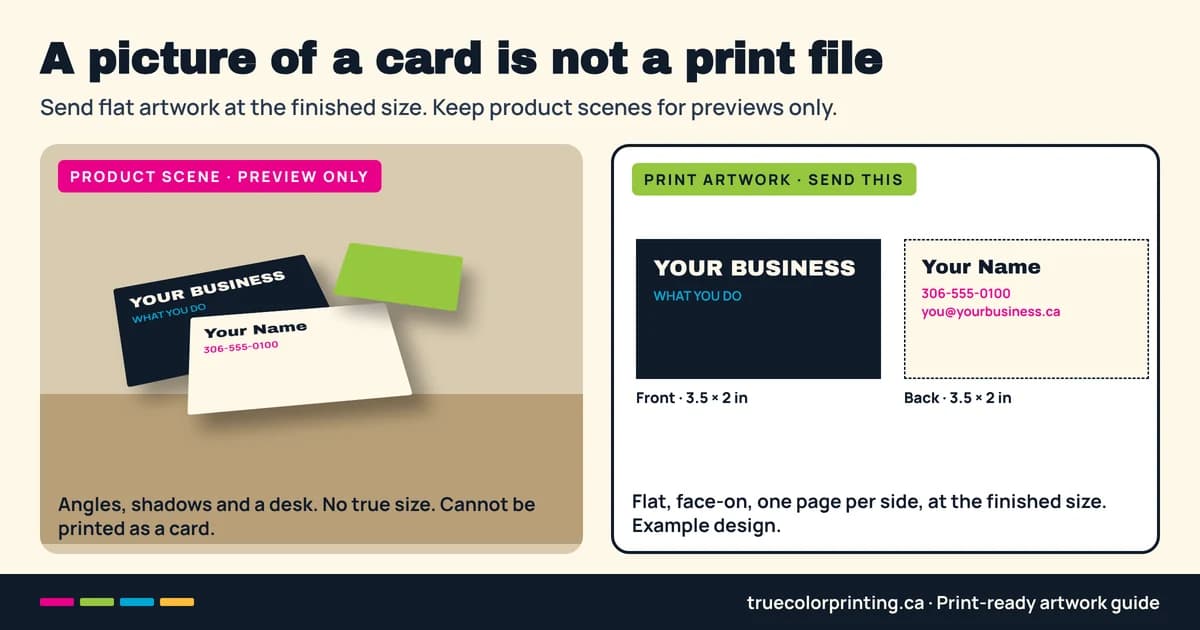
Print artwork is the flat design itself: each side laid out face-on at the size it will be cut to. A product scene is a picture of the finished item, like business cards fanned out on a desk, a banner on a fence or a poster in a frame. Product scenes are useful for showing an idea. They cannot be printed as the item, because they have angles, shadows, a background and no true size.
AI image tools often make product scenes by default. Ask "make me a business card" and you may get a stylish photo of a card stack. That picture would print as a photo of cards, not as your card. If you want a preview too, ask for it separately and keep it out of the files you send to print.
One word to watch: at True Color, a "mockup" is the flat layout proof staff send you before printing, so you can check names, numbers and the logo. It is not the same as an AI product scene.
- Send: flat front, flat back, each at the finished size
- Keep for preview only: tilted cards, wall photos, hands holding the product
- Ask the AI for "flat printable artwork only, no product scene"
What size, resolution and bleed does a print file need?
Start at the finished size. If the card will be 3.5 × 2 inches, set the page to 3.5 × 2 inches before you design, not a square social post that you stretch later. Say portrait or landscape, and make one page per side.
Image detail is measured in pixels per inch at the printed size. For small items seen up close, like cards, flyers and stickers, about 300 pixels per inch is a common target. A 3.5 × 2 inch card at 300 pixels per inch needs about 1050 × 600 pixels. Enlarging a smaller picture to that size does not add the missing detail. Signs and banners are seen from farther away, so the number your printer needs can be lower; ask them for your size.
Trim is the line where the piece is cut. Bleed is extra background past the trim, so a small shift in cutting never leaves a thin white edge. The safe area is the space inside the trim where words, phone numbers, logos and QR codes belong. Canva adds 0.125 inches of bleed on every side when you turn it on, and that size cannot be changed in Canva. Printers set their own bleed and safe area, so use the numbers your printer gives you.
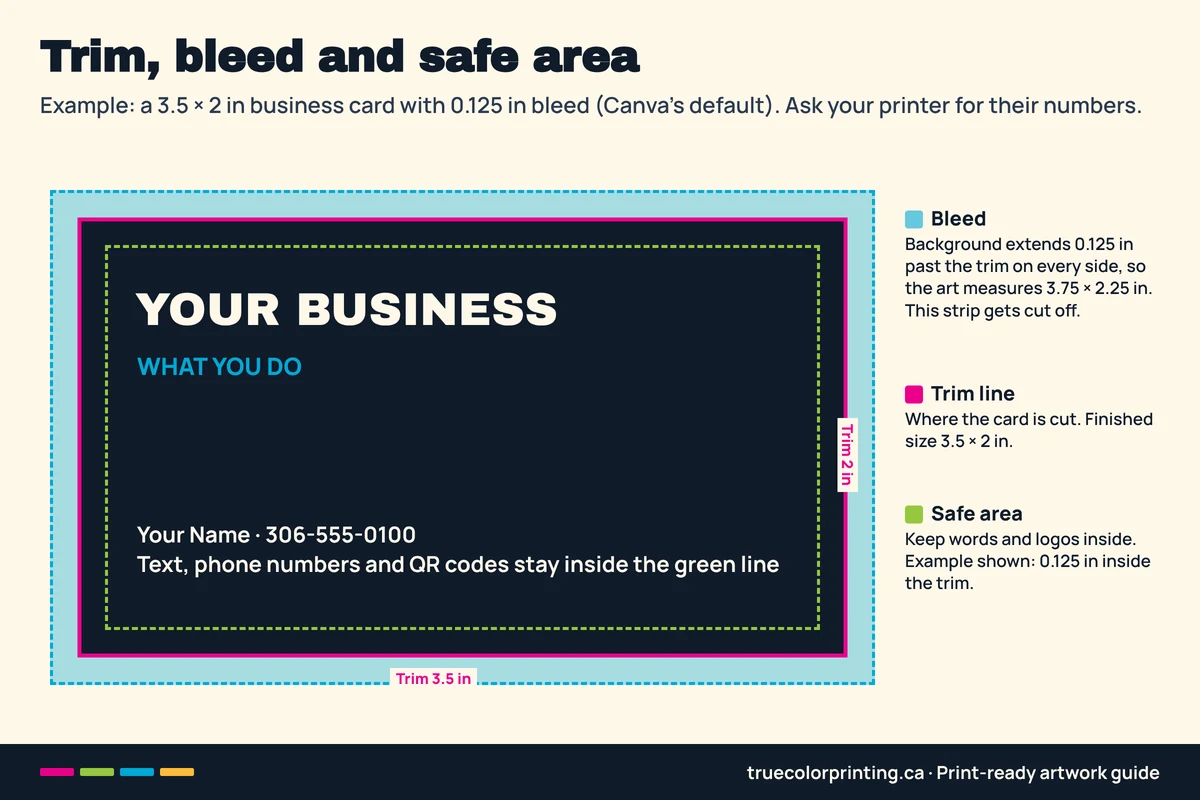
- Example only, with 0.125 in bleed: 3.5 × 2 in card → 3.75 × 2.25 in artwork
- Example only, with 0.125 in bleed: 8.5 × 11 in flyer → 8.75 × 11.25 in artwork
- Banners, signs and cut stickers have their own edges, hems, holes or cut lines: ask before you design
Related: Business cardsFlyersPhoto posters
Does saving a PNG as a PDF make it print-ready?
No. A PDF is a container. If you download a small PNG and then save or print it as a PDF, the PDF holds the same small PNG. The text is no longer editable, the logo is still made of pixels, and none of the lost detail comes back. The file name changes; the picture does not.
The fix is to go back to the original design and export the PDF from there. In Canva, PDF Print exports at 300 dpi and keeps text and shapes as they were drawn, while PDF Standard is set for 96 dpi screen use. Canva also caps JPG and PNG downloads at 8000 × 3125 pixels, which is another reason to use PDF Print for large pieces.
A high-resolution JPG or PNG can still print well. A good photo from a camera, or a PNG exported large enough for the printed size, is fine to send as it is. What matters is the detail inside the file, not the letters after the dot.
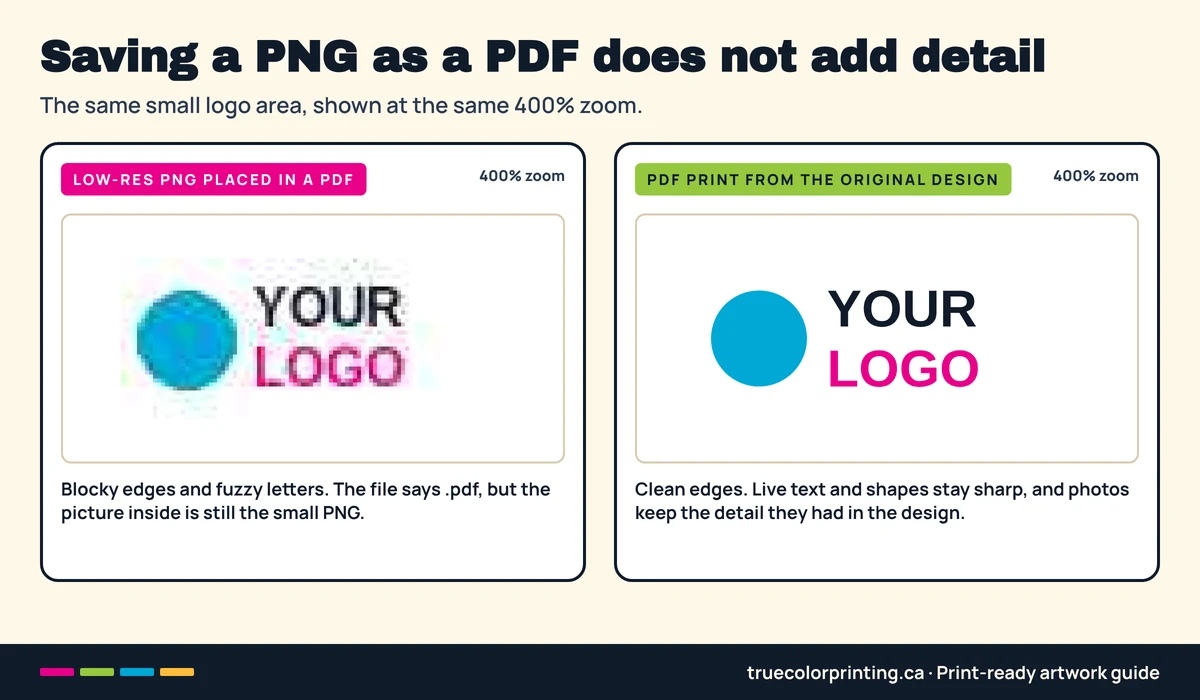
- Good: PDF Print exported from the original Canva design
- Good: the full-size original photo or PNG, sent as it is
- Not helpful: a screenshot, a picture saved from a chat app, or a small PNG wrapped in a PDF
Related: Image upscaleLogo vectorization
How do you make print artwork with ChatGPT or another AI?
Treat AI as a fast first draft. Some tools only make pictures. They do not make true vector logos, set exact page sizes or add bleed, and they often misspell names or invent a logo. The safest path is: get the idea from AI, make it flat at the right shape, place it in a design tool such as Canva at the finished size, then export the PDF and check it.
Give the AI the facts it cannot guess: the product, the finished size, portrait or landscape, one or two sides, your exact words, your real logo, and any bleed or safe area the printer gave you. Tell it plainly not to make a product scene. Then check the result yourself. "Print-ready" in a prompt is a request, not a promise.
Copy this prompt
I am making artwork that a print shop will print.

Product: [business card / flyer / poster / sign / banner / sticker]
Finished size: [width × height, with units]
Orientation: [portrait or landscape]
Sides or pages: [one side / front and back / number of pages]
Exact text (copy it exactly): [paste]
Logo and brand colours: [attach my logo; list colours]
Bleed and safe area from the printer: [numbers, or "unknown"]

Make the FLAT printable artwork only, at the correct shape for the finished size.
No photo or scene of the product: no desk, wall, hand, frame, stack or angle.
Keep all text, phone numbers and QR codes well inside the edges.
Extend the background past the edges only if I gave you a bleed size.
Make each side a separate page. Use my logo exactly; do not invent one.
If you cannot make a correctly sized print PDF, say so, and tell me how
to place this artwork in a design tool and export a print PDF.
Then list what I should check before sending it to the printer.
Copy this business-card example
Make flat printable artwork for a double-sided business card.
Finished size 3.5 × 2 inches, landscape. Front and back as separate pages.
No photo of cards, no angle, no desk. Use the exact name, phone and email
I give you and the logo I upload. Keep all text away from the edges.
If my printer confirms 0.125 inch bleed, extend the background to
3.75 × 2.25 inches while the cut size stays 3.5 × 2 inches.- Check every letter, number, email and web address
- Scan the QR code from the exported file with a real phone
- Measure the page size in the exported PDF
- Compare the logo with your real logo file
Related: Order business cardsDesign help
How do you share a Canva design with a print shop?
Send the exported PDF first. A Canva link is useful when the shop needs to fix something or help with layout, but it is not a replacement for the print file.
Canva designs are private by default ("Only you can access"). To share, open the original design, select Share, and either type the shop's email under "People with access" or set a link. Pick the lowest access the shop needs: "can view" to look, "can comment" to mark changes, "can edit" only when you have agreed they will change the design.
Avoid "Anyone with the link" plus "can edit". Canva says anyone who has that link can then change the design without logging in. Before sharing more widely, remove hidden pages, cropped photos and notes you do not want seen, because shared designs and PDFs can still contain them.
Check the link works: open it in a private browser window, or ask the shop to confirm they can open it.
- Best: invite the shop's email with "can view" or "can comment"
- Only if agreed: "can edit"
- Always: send the PDF as well
Related: Design help
Sending your file to True Color in Saskatoon
You can upload artwork on the product page when you order. Each item takes up to 5 files, 50 MB each. PDF, AI or EPS works best; a PNG or JPG at 300 dpi works; Canva designs are accepted. Add a note with the size, quantity, sides, any finishing and the date you need it.
Staff check your file and send a mockup, a flat picture of the final layout. Read it slowly. Nothing prints until you approve it. If staff notice a clear problem, they tell you; otherwise your design is printed as you sent it, so the file check above still matters.
Your file does not have to be perfect. If it has no bleed or a photo is too small, staff can add bleed and upscale the image (upscale is a flat $20); a bigger fix-up or a new design is a flat $40. Staff confirm any extra work or fee with you before printing. Standard orders are ready in 1 to 3 business days after mockup approval and payment, for pickup at 216 33rd St W (upstairs), Saskatoon.
Questions about a file: email info@truecolorprinting.ca or call 306-954-8688.
Questions people ask
What does print-ready mean?
A print-ready file is flat artwork at the finished size with every side included, images sharp enough for that size, text kept inside the safe area, and background extended into bleed when the printer asks for it. Most printers prefer a PDF exported from the original design.
Is Canva's PDF Print good enough for professional printing?
Usually, yes. Canva's PDF Print exports at 300 dpi with options for bleed, crop marks and an RGB or CMYK colour profile. It still prints exactly what is in the design, so check the size, photo quality and spelling before you send it.
Should I turn on crop marks and bleed in Canva?
Turn on Show print bleed while designing so backgrounds reach past the edge. Turn on "Crop marks and bleed" in the download settings only if your printer asks for it. Canva's bleed is fixed at 0.125 inches on every side.
Can ChatGPT make a print-ready file?
It can help with ideas and flat artwork, but do not assume the result is ready. AI images often have the wrong size, no bleed, misspelled words or an invented logo. Place the artwork in a design tool at the finished size, export a PDF, and check it before ordering.
What resolution do I need for printing?
For small items seen up close, like cards, flyers and stickers, about 300 pixels per inch at the printed size is a common target. A 3.5 by 2 inch card needs about 1050 by 600 pixels. Large signs and banners are seen from farther away, so ask your printer what they need for your size.
Why does my Canva design look blurry when printed?
The most common causes are a low-resolution photo in the design, a PNG or JPG download instead of PDF Print, or a PDF made from an old PNG. Canva also limits JPG and PNG downloads to 8000 by 3125 pixels, which can be too small for big prints.
How do I share a Canva design with a print shop safely?
Invite the shop's email from the Share menu and give the lowest access they need, such as can view or can comment. Avoid "Anyone with the link" with edit access, because anyone holding that link can change the design. Send the exported PDF as well.
What if my file has no bleed or my image is too small?
Send it anyway and say so in your note. Many print shops can add bleed or enlarge an image; ask yours. At True Color, staff can add bleed and upscale a small image for a flat $20, and they confirm any extra work or fee before printing. Enlarging cannot rebuild every detail, so the mockup shows how it will look.
References: Canva: Choose the right download file type; Canva: Use margins, bleed, rulers and crop marks; Canva: Sharing designs via email or links
Ready when you are.
Upload your front and back when you order.
Order business cards